





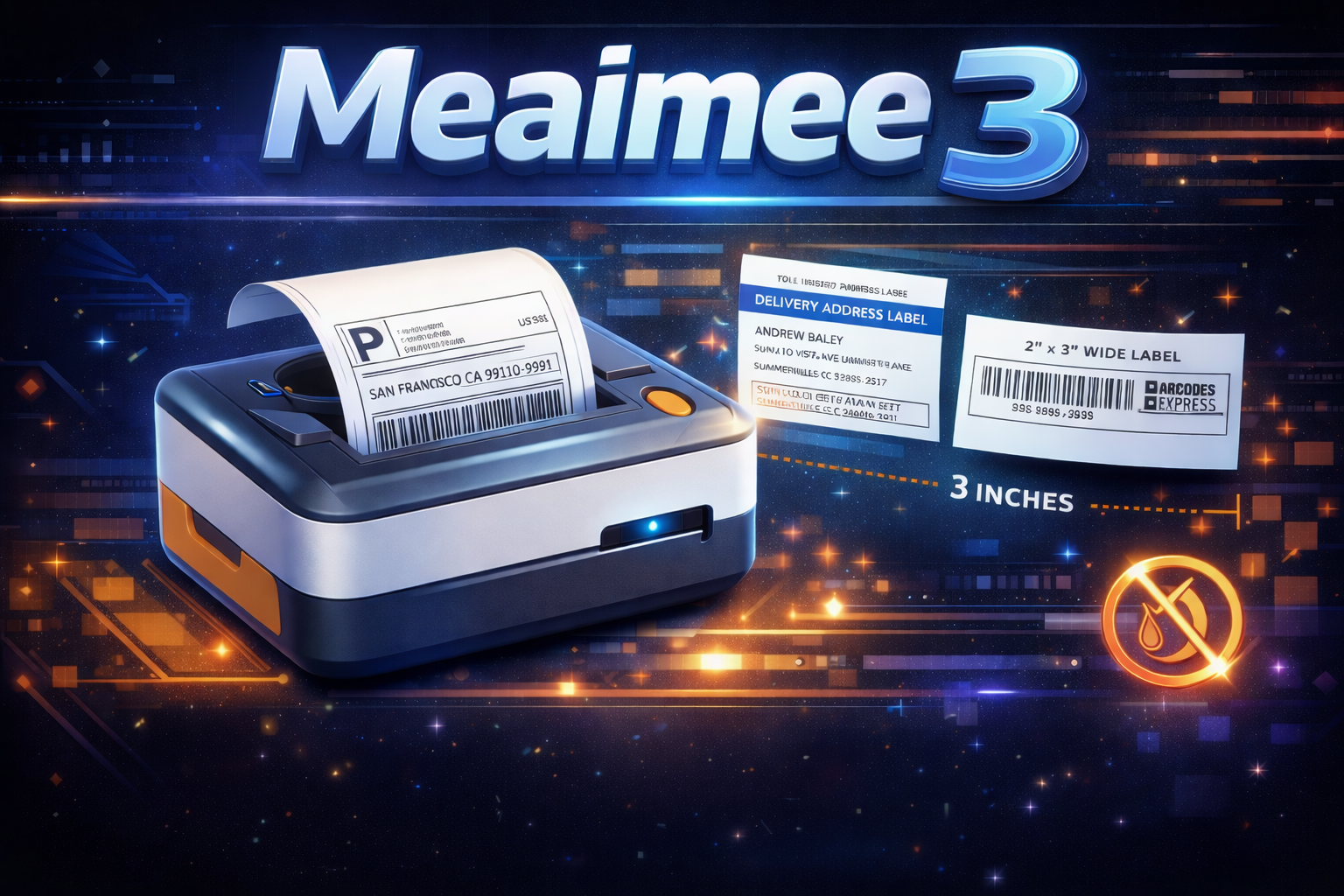
The Meaimee 3 is a portable 3-inch thermal printer designed to handle wide labels and shipping tags without using a single drop of ink.
Owning a small business or a chaotic pantry usually leads to the same problem: a mess of unidentifiable boxes. Standard desktop printers are bulky and eat expensive ink cartridges. The Meaimee 3 offers a way out. It fits in your palm, connects to your phone via Bluetooth, and spits out 3-inch wide labels in seconds. Because it uses thermal technology, the only “fuel” you need is the paper itself.
Getting Your Meaimee 3 Up and Running
Setting up the Meaimee 3 involves syncing the hardware with the mobile app and calibrating the paper sensor to prevent alignment errors.
In practice, the first time you open the box can be confusing. Follow these steps to get your first label printed in under five minutes:
- Charge the Battery: Use the provided USB-C cable. A full charge takes about two hours and lasts for roughly five hours of continuous printing.
- Load the Roll: Open the top cover. Place your thermal roll inside. Make sure the paper faces up toward the print head. Pull a small tail of paper out of the slot before snapping the lid shut.
- Download the App: Search for “4Barcode” or “Meaimee Print” on the App Store or Google Play. These are the standard drivers used for this hardware.
- Sync via Bluetooth: Turn on the printer by holding the power button. Open the app and tap the printer icon. You should see a device named “D48” or “Meaimee-3”. Tap it to pair.
- Calibrate: This is the part most people skip. Hold the “Feed” button until the printer beeps twice. It will slide the paper back and forth to find the gap between labels. This prevents wasted stickers.
Optimizing Your Print Quality
High-quality thermal printing requires balancing the “Heat Density” settings in the app to ensure crisp text without melting the label coating.
That means you shouldn’t just hit “print” with the default settings. Thermal printers work by applying heat to a chemical coating on the paper. If the heat is too low, the text looks grey and faded. If it is too high, the edges of your barcodes will “bleed,” making them unreadable by scanners.
| Setting | Recommended Value | Why it Matters |
|---|---|---|
| Print Density | 8 or 10 | Prevents “ghosting” or light text on glossy labels. |
| Print Speed | Medium (50mm/s) | Slower speeds allow the heat to set more evenly. |
| Dithering | Threshold | Keeps logos sharp instead of grainy. |
For example, if you are printing QR codes for a Shopify store, set your density to 10. Small squares need high contrast to be picked up by a smartphone camera.
The Hidden Truth: The “Ghost Label” Trap
The biggest risk with the Meaimee 3 isn’t the hardware, but the chemical instability of cheap thermal paper rolls.
Let’s be honest: most users buy the cheapest rolls of 3-inch thermal paper they can find on Amazon. Here is the problem. Thermal paper is reactive. If you place a label on a container that sits in a sunny window or a hot garage, the image will vanish within three months. This is often called “ghosting.”
To avoid this, look for “BPA-Free, Top-Coated” thermal paper. That extra coating acts as a shield against moisture and UV light. If you are labeling frozen food or outdoor equipment, standard labels will fail. In those cases, you need synthetic thermal film, which feels more like plastic than paper. It costs a few dollars more, but it saves you from having to re-label your entire inventory next season.
Advanced Workflow: Batch Printing from PDFs
You can print full-size shipping labels on the Meaimee 3 by using the “Crop and Rotate” tool within the mobile software.
Most shipping labels come as 4×6 inch PDFs. Since the Meaimee 3 is a 3-inch printer, it won’t fit the standard size. You don’t need a new printer. Instead, open the PDF in the app, use the selection tool to “box” the barcode and address, and rotate it 90 degrees. The printer will scale the image down to fit the 3-inch width.
Here’s why this works: thermal printers are resolution-independent. Even if you shrink a shipping barcode, the 203 DPI (dots per inch) resolution is high enough for USPS or UPS scanners to read it perfectly.
Frequently Asked Questions
Why is my Meaimee 3 printing blank labels?
Blank labels usually indicate that the paper roll is loaded upside down or that you are using non-thermal paper. Thermal printers only work on one side of the paper. If you scratch the paper with your fingernail and it doesn’t leave a black mark, it isn’t thermal paper. If it does leave a mark, flip the roll over and try again.
Does the Meaimee 3 work with a PC or Mac?
Yes, but it requires a USB-C connection and the installation of a specific “Label Printer” driver from the manufacturer’s website. While the Bluetooth feature is great for phones, desktop computers often struggle with Bluetooth handshake protocols for printers. Use the cable for a more stable connection when printing from Excel or Word.
How do I clean the print head?
You should wipe the thin black strip inside the printer with an alcohol-soaked cotton swab after every 5 rolls of paper. Tiny bits of paper dust and adhesive can build up on the heating elements. If you notice white streaks running through your text, a dirty print head is almost always the culprit.